.svg)
.png?width=155&height=63&name=LogoImg%20(1).png "LogoImg (1)")

In a veterinary practice, printers carry a lot of weight: discharge instructions, invoices, lab requisitions, prescription labels, consent forms. When one goes down at check-in or checkout, the whole front desk feels it.
Over the past several months, we've seen a clear increase in printer-related support tickets across the practices we serve. When we look at what's behind them, the same few causes keep coming up, and nearly all of them can be prevented. The following three guidelines will keep your printers stable and help us resolve problems quickly when they do happen.
Guideline 1: Use OEM Supplies, Not "Compatible" or Look-Alike Parts
OEM (Original Equipment Manufacturer) supplies are toner, ink, drums, and other consumables made by the company that built your printer, such as Brother, HP, Canon, or Lexmark.
We understand why cheaper options are tempting. A generic toner cartridge on Amazon can cost half as much as the brand-name version. But in the clinics and hospitals we support, those savings often turn into:
- Streaking, smudging, or faded prints, especially on labels and forms that need to be legible
- Drum and toner failures well before their rated page count
- "Unrecognized cartridge" errors that stop the printer entirely
- Leaks and toner spills that can damage internal parts
- Voided or disputed manufacturer warranties when non-OEM supplies are involved
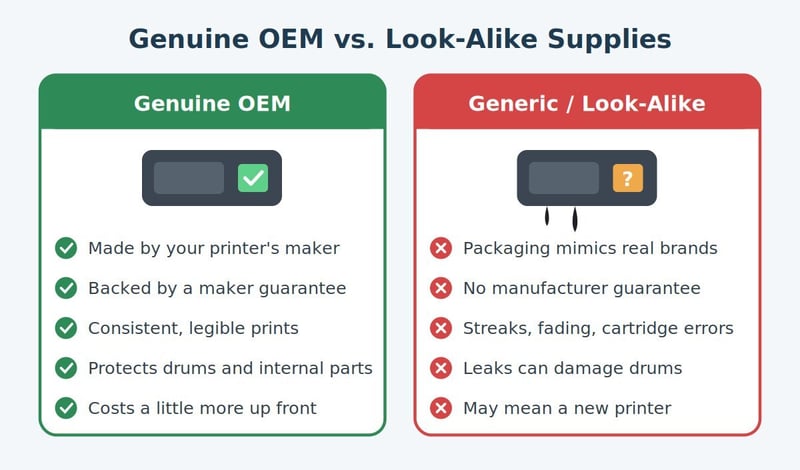
Watch for counterfeits. Many listings on Amazon and other marketplaces look like genuine Brother or HP products. They use similar packaging, logos, and part numbers, but they aren't the real thing. To be sure you're getting genuine supplies, buy directly from the manufacturer or from an authorized reseller.
OEM supplies cost a bit more, but the manufacturer stands behind them with a guarantee. When a genuine cartridge fails, you have recourse. When a knock-off fails, you usually don't.
Important support note: If a printer with a problem is using non-OEM supplies, our first troubleshooting step will be to replace them with genuine OEM supplies. This alone resolves a large share of the printing issues we see. Please have OEM replacements on hand, or purchase them, before we move on to deeper troubleshooting.
Unfortunately, swapping the cartridge doesn't always undo the damage. A leaking or poorly made non-OEM cartridge can spread toner or ink inside the printer and wear out internal parts. When that happens, a true long-term fix may require replacing the drum unit, or in severe cases the printer itself. That added expense is exactly what we're trying to help you avoid, and it's the strongest reason to use OEM supplies from the start.
Guideline 2: Keep Printers Wired, and Let Us Handle the Troubleshooting
The wired connection is what keeps everything working
Every printer we set up for your practice is connected with a network cable (a "hard line" or LAN connection) on purpose. That connection is the single most important factor in a stable printer. Wi-Fi cards in printers are unreliable. They drop connections, change addresses, and struggle in busy clinics full of wireless devices. A wired connection is stable and predictable.
On many printers, turning on Wi-Fi automatically shuts off the wired connection. When that happens, the printer disappears for every workstation that prints to it, not just one, and its network settings have to be reconfigured by hand before it will work again. A quick fix at one desk can disrupt printing across the whole practice.
"Not connected to Wi-Fi" is not an error
Many Brother printers show a Wi-Fi symbol with a slash through it, or a message saying the printer isn't connected to Wi-Fi. This is intentional. Your printer is on its wired connection, which is exactly where we want it. Nothing needs to be fixed.
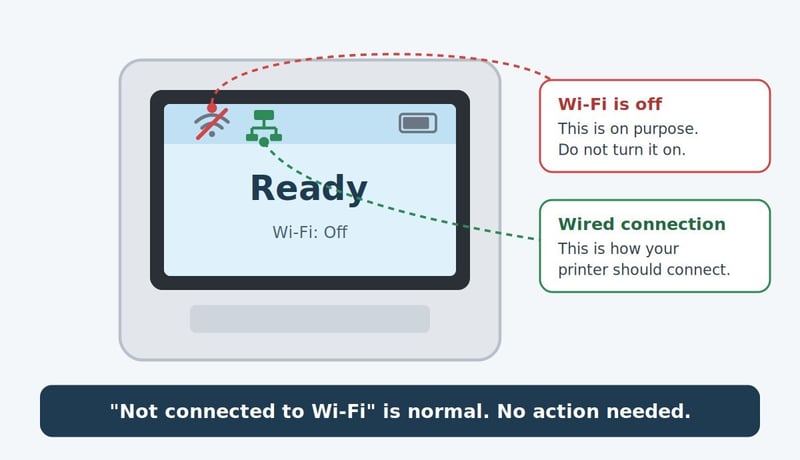
If you search online or ask an AI assistant about that message, you'll likely get step-by-step instructions for connecting the printer to Wi-Fi. Please don't follow them. Turning on Wi-Fi shuts off the wired connection, takes the printer offline for the whole practice, and means we have to revert the change before anything else can be done. A message that needed no action can turn into a printer that's down for an extended period.
Why "trying a few things first" can make it take longer
We know your team wants to get things working without waiting on a ticket, and that instinct is appreciated. But when settings get changed before we're involved, such as enabling Wi-Fi, running a setup wizard, resetting the printer, or reinstalling drivers, the fix takes longer:
- First, we have to figure out what changed.
- Next, we have to undo those changes and restore the printer's known-good setup.
- Only then can we start troubleshooting the original problem.
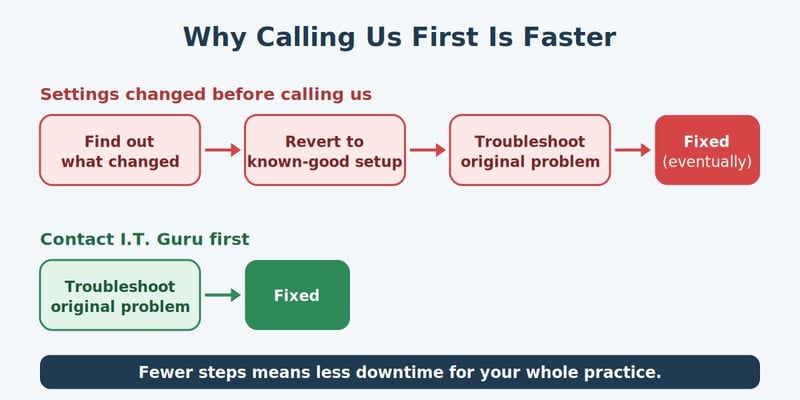
That's three steps in place of one, and more downtime for your practice. The fastest path is to contact us first so we can triage the problem together.
Guideline 3: Loop Us In Before Moving a Printer
Rearranging a treatment area, remodeling the front desk, or relocating a printer to a new room may seem like a simple unplug-and-replug. In practice, moves are one of the most common reasons a working printer suddenly stops working. A move can:
- Put the printer on a network jack that isn't active or is on a different network segment
- Leave it without a cable run at all, which tempts staff to switch it to Wi-Fi
- Change the printer's network address, so workstations can no longer find it
- Break the connection for every workstation and program that prints to it, including your PIMS
A move should also include renaming the printer to match its new location. If "Front Desk Printer" now sits in the treatment area, staff will send prescriptions and discharge forms to the wrong room, or assume the printer is broken when their pages don't come out where they expect. When you let us know about a move, we'll update the printer's name on every workstation so it's clear which printer is which.
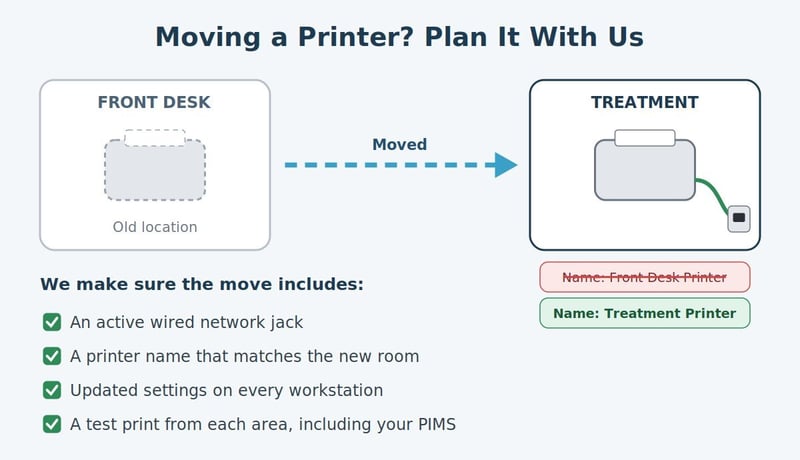
Please contact us before any printer or other technology is moved, even across the room. Give us a heads-up about the new location and timing, and we'll confirm there's a working network connection in place, plan the move, and verify that everything prints correctly afterward. A few minutes of planning up front avoids hours of disruption after the fact.
What to Do When a Printer Acts Up
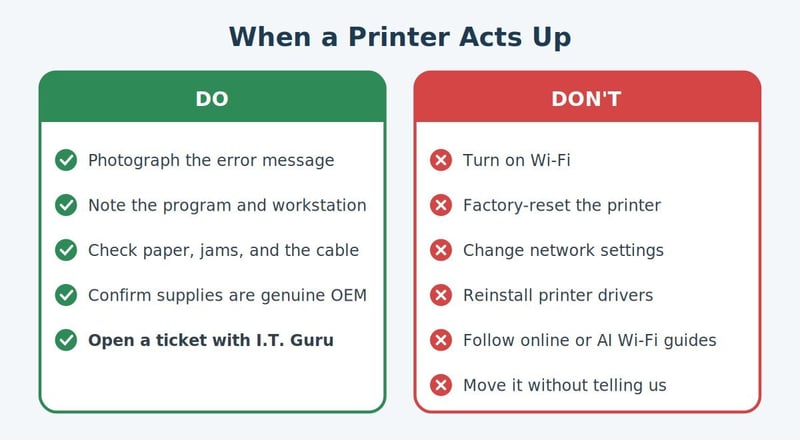
Here's what helps us most, and none of it changes the printer's setup:
- Take a photo of any error message on the printer's screen or your computer.
- Note what you were printing, from which program (for example, your PIMS), and on which workstation.
- Check the simple things: Is there paper? Is there a jam? Is the network cable still firmly plugged in at both ends?
- Check your supplies: Are you using genuine OEM toner, ink, and drums?
- Contact us by opening a ticket, and include the details above.
What we ask you not to do:
- Don't turn on Wi-Fi or connect the printer to a wireless network.
- Don't follow online or AI-generated instructions to connect the printer to Wi-Fi.
- Don't factory-reset the printer or change its network settings.
- Don't uninstall or reinstall printer drivers.
- Don't move the printer without letting us know first.
Printing Should Be the Least of Your Worries
Your team's attention belongs on patients and clients, not paper jams. Stocking genuine OEM supplies, keeping printers on their wired connection, and bringing us in before a move will prevent most of the printing problems we've been seeing, and get the rest solved faster.
Questions about your printers, supplies, or an upcoming move? Contact the I.T. Guru support team. We're happy to help.